Key takeaways
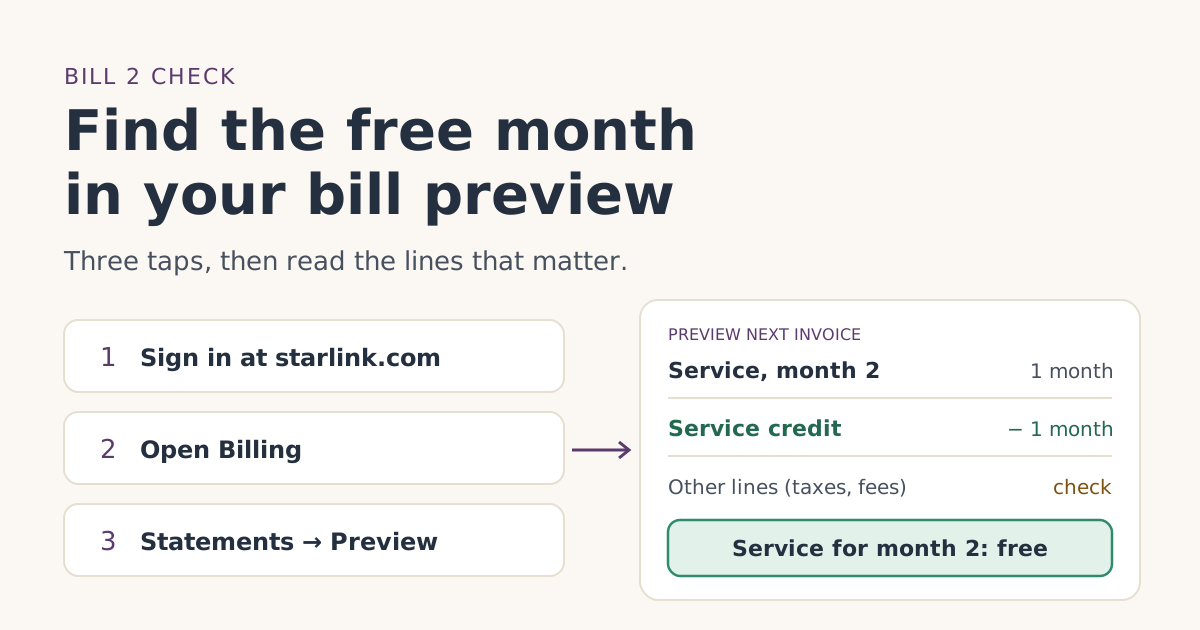
- On the web: sign in at starlink.com, open Billing, then Statements. In the app: Billing, Manage Payment Method, then Preview Next Invoice.
- Starlink says the preview updates every day and shows charges due as of that day, so a full-price preview right after bill 1 is normal.
- Once the referral is confirmed, Starlink emails you when the free month is confirmed, and the bill preview in your account shows month two as free.
- If a credit is added after a bill has already been generated, Starlink applies it to the next bill instead. Check bill 3 before assuming it’s lost.
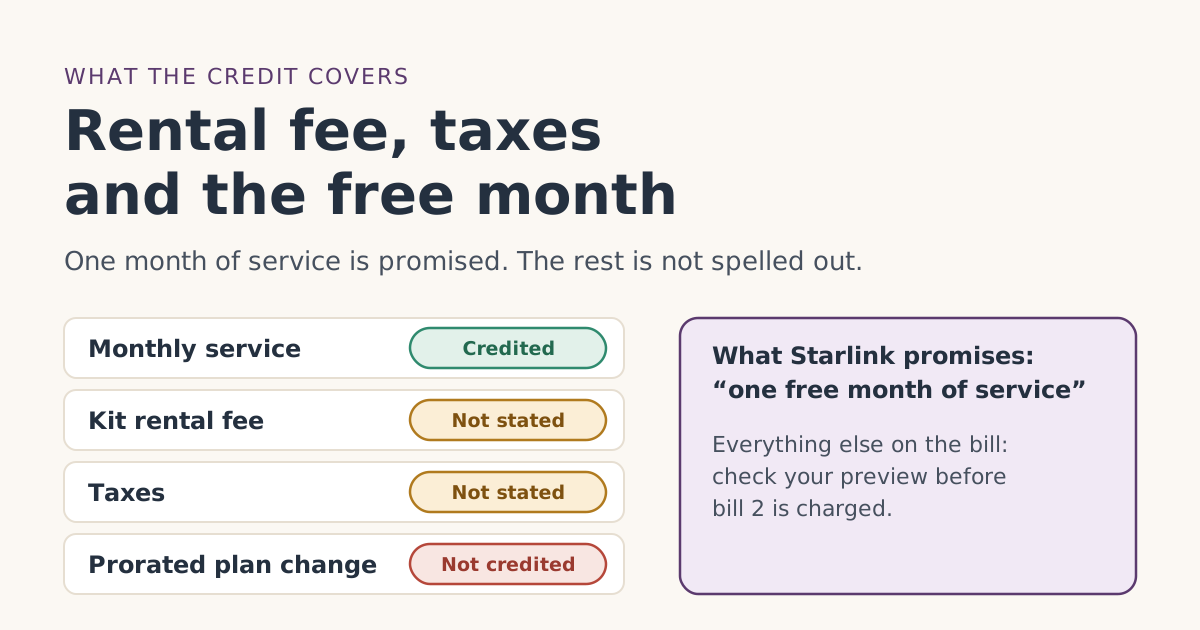
- Read the amount due, not just the credit line. Whether the credit also covers rental, taxes or fees is not published.
To check your free month, open the bill preview in your Starlink account a few days before your second bill. On the web it’s under Billing, then Statements; in the app it’s Billing, Manage Payment Method, then Preview Next Invoice. Once the referral is confirmed, Starlink says your second month will show as free there.
The preview matters because it’s the only check that happens before money moves. The confirmation email can be late or land in spam, and the final invoice arrives after you’ve been charged. This guide shows exactly where the preview is, what each line means, when to look, and what to do when the credit isn’t there.
Where the bill preview is
Starlink’s help article on the “Payment Scheduled” email gives the steps. They differ slightly between the website and the app.
On the website
- Go to starlink.com by typing the address yourself, and sign in.
- Click Billing.
- Click Statements. The preview of your next invoice is there, next to your past statements.
In the Starlink app
- Sign in to the app.
- Tap Billing.
- Tap Manage Payment Method.
- Scroll down to Statements and tap Preview Next Invoice.
Starlink’s billing-cycle article also says you can preview your next monthly invoice “at any time” by clicking Preview Next Invoice. You don’t need to wait for an email to look.
Both work, but the web Billing page also shows your credit table, your payment history and downloadable statements on one screen. That makes it easier to match the preview against what you were charged.
What the free month looks like on the preview
Starlink doesn’t publish a screenshot of a referral credit, so here is what its help articles say, line by line.
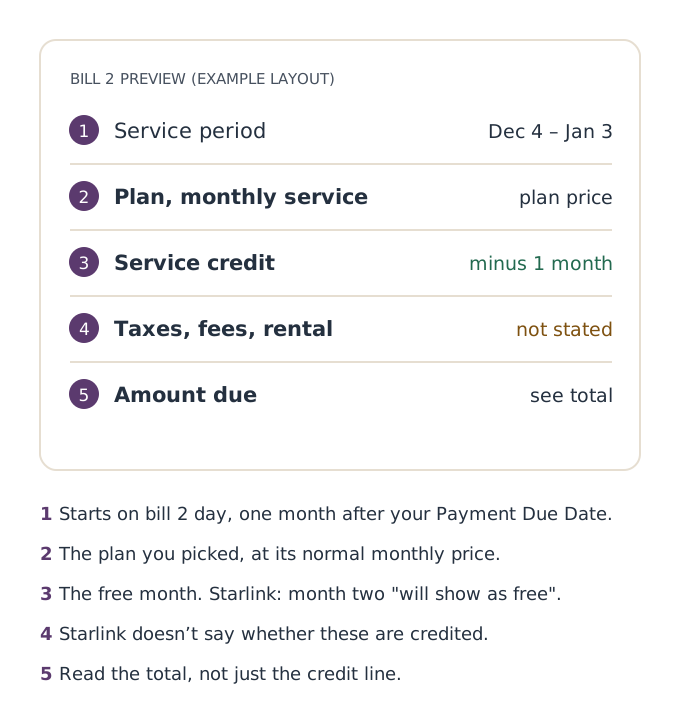
- The service period. Bill 2 covers the month that starts one month after your Payment Due Date. If the period starts on the same day as your first bill, you’re looking at the wrong invoice.
- Your plan’s monthly charge. The plan you picked, at its normal price. The free month doesn’t lower the price; it’s taken off afterward.
- A service credit. Starlink’s article on promotional credits says a credit “will deduct from the outstanding balance, not exceeding the total amount of the statement,” and that the invoice gets a line item showing the credit applied. It adds that one month of service credit means a zero billing statement for the next cycle.
- Other lines. Starlink’s referral pages promise one month of service. Whether a separate rental line, taxes or fees are also credited is whether the free month also covers a monthly kit rental feeunverified. Our guide on rental fees, taxes and the free month goes through what to check.
- The amount due. This is the number your card will be charged. Read it rather than assuming the credit covers everything.
A worked example
Say you chose Roam 100GB at $55/mo and activated on Wednesday, Nov 4, 2026. You paid bill 1 that day. Your bill 2 preview, checked around Tuesday, Dec 1, should show the Roam 100GB service charge for Dec 4 to Jan 3 and a service credit of one month against it. The service part of that bill should net to zero. If the preview shows the full plan price and no credit line, keep reading.
When to look, and what you should see each time
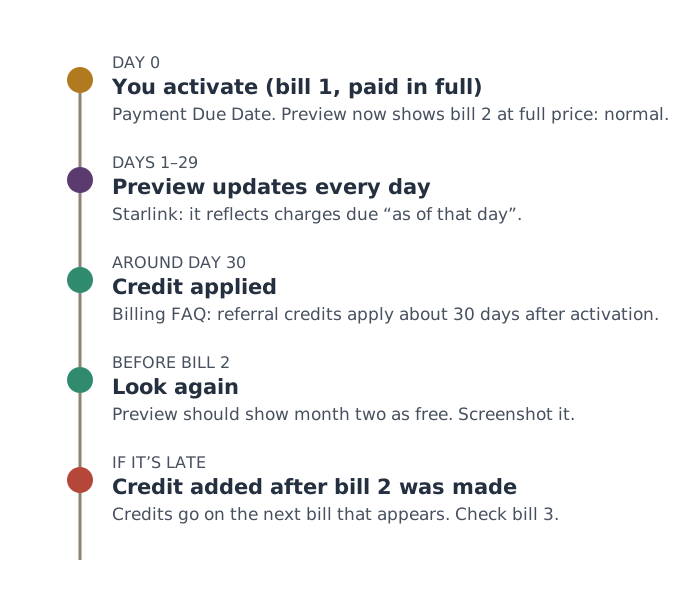
| When | What the preview should show | What it means |
|---|---|---|
| Right after bill 1 | Bill 2 at full plan price | Normal. The credit isn’t applied yet. |
| Around day 30 after activation | A service credit line appears | Starlink’s billing FAQ says referral credits are applied about 30 days after activation. |
| 2 to 3 days before bill 2 | Month two shows as free | This is the check that counts. Screenshot it. |
| Bill 2 day | Final statement with the credit | Download the statement from Billing. |
Starlink’s billing-cycle article explains why the preview moves: it “will update each day of the month and will reflect all charges due as of that day.” Looking once in week one and giving up is the most common way people scare themselves for nothing.
If the credit isn’t on the preview
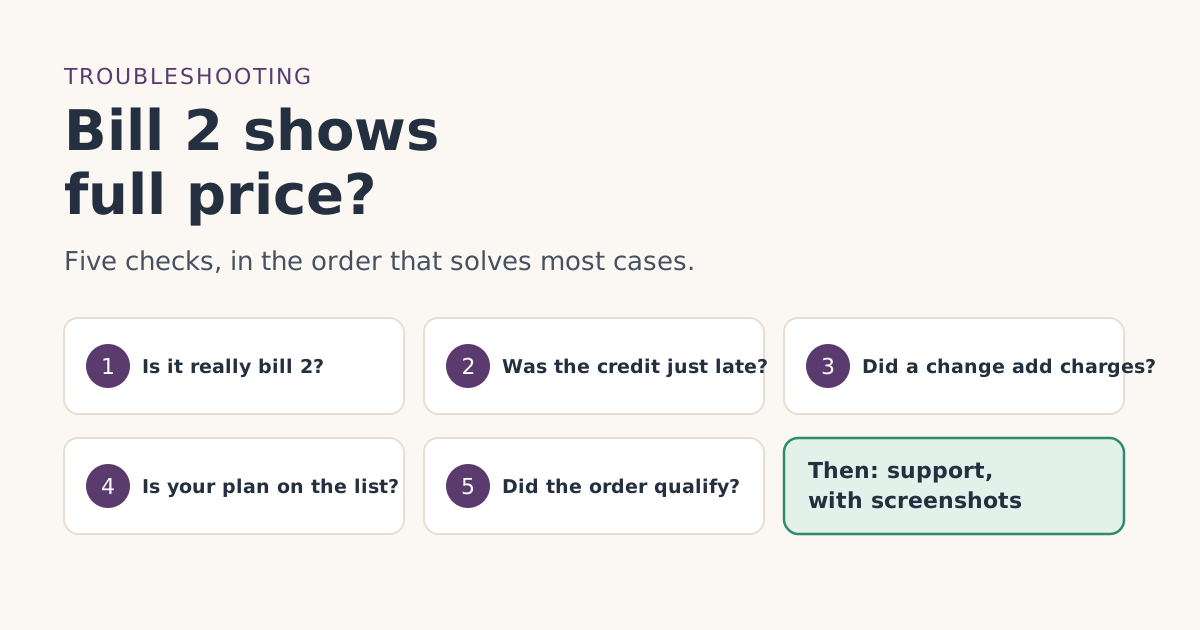
Work through these in order. Most cases are timing, not a lost credit.
- Is it too early? If you activated less than about 30 days ago, wait. The credit is applied on Starlink’s schedule, not when the preview is opened.
- Are you looking at the right bill? You want the invoice whose service period starts one month after your first charge. Our billing timeline tool works out the dates from your activation or delivery day.
- Was the credit added late? Starlink’s credits article says that if a bill was already pending when a credit was added, the credit “will not change the scheduled payment amount, and instead will be applied to your following bill.” So a credit can land on bill 3 instead of bill 2. Check the credit table on the Billing page: a credit with its full amount still available is waiting for the next bill.
- Did something change your bill? Starlink says service credits are only applied to monthly subscription charges, not to “immediate transactions or pro-rated costs” such as reactivation or plan changes. A mid-cycle upgrade adds a prorated charge the credit won’t touch. See changing plans before bill two.
- Did the order qualify? If you ordered in a store, on another device than the one you opened the link on, or without the link at all, there may be nothing to apply. Starlink’s billing FAQ says it is unable to issue referral credits where the link wasn’t used. The free month not showing up troubleshooter sorts out which case you’re in.
If all five check out and bill 2 is close, contact support from inside your Starlink account. Our guide to what to send support has a message you can copy.
Email or preview: which one to trust
Starlink does both: “We’ll email you when your one month of free service is confirmed,” and the preview shows month two as free. They can disagree for a few days.
| You see | Likely meaning | What to do |
|---|---|---|
| Email and credit on preview | It worked | Screenshot the preview. Nothing else to do. |
| Credit on preview, no email | It worked; the email is late or filtered | Search your inbox for mail from @starlink.com, including spam. |
| Email, but no credit yet | Usually timing | Check the credit table and look again in a day or two. |
| Neither, a few days before bill 2 | Something may have gone wrong | Use the troubleshooter, then contact support. |
The preview is your account’s own record. If you have to choose, trust it over the inbox. Our article on the missing confirmation email covers the email side.
Where to see credits and past payments
Three other parts of the Billing page help you confirm what happened:
- The credit table. Starlink says it’s below the invoice table, with a summary under the account balance box. Each credit has a type (service, hardware or generic), a total amount and an available amount. The difference between total and available is what has already been applied.
- Statements. Downloadable copies of your subscription statements and kit invoices. Starlink says invoices show the service period, each line, taxes, credits applied and the amount remaining.
- Payment history. Every payment, its amount and whether it completed or failed.
Common mistakes
- Checking only once, right after bill 1. The credit isn’t there yet. That’s expected.
- Reading the credit line and skipping the total. The credit covers one month of service. Other lines may still be charged.
- Following an email link to “check your bill.” Starlink’s phishing guidance says to log in directly at starlink.com instead. Type the address.
- Changing plans the week before bill 2 to “use” the credit on a bigger plan. Prorated charges from a mid-cycle change aren’t covered by credits, and how the credit is valued after a switch is how the credit lines up with a prorated or plan-changed billunverified.
- Assuming a late credit is lost. It may simply go on the following bill.
What we don’t know
Starlink doesn’t publish what the referral credit line is called on the invoice, the exact day it is applied, whether it also covers rental, taxes or fees, or how it behaves on a shortened first cycle. We describe what Starlink’s help articles say and label the rest. If your preview shows something we haven’t described, your account is right and this page may need an update. Tell us so we can check.
What to do next
- Work out your bill 2 date from your Payment Due Date.
- Set two reminders: about 30 days after activation, and 2 to 3 days before bill 2.
- On the second reminder, open the preview, check the amount due, and screenshot it.
- If the credit isn’t there, start with the troubleshooter before contacting support.
Questions people ask
Where is the bill preview in my Starlink account?
Why does my bill preview still show full price?
What does the free month look like on the bill?
Do I get an email when the free month is applied?
Where can I see my service credits?
Can I still change things after I see the preview?
Sources
- How do I use a referral link? (Starlink help center) Starlink
- What are the Roam service plans? (Starlink help center) Starlink
- Why did I receive a "Payment Scheduled" email? (Starlink help center) Starlink
- How does the monthly service billing cycle work? (Starlink help center) Starlink
- Billing - Credits (Starlink help center) Starlink
- How does a service credit get applied to my account for a promotion? (Starlink help center) Starlink
- Additional FAQs - Billing (Starlink help center) Starlink
- View Payment History (Starlink help center) Starlink
Related guides
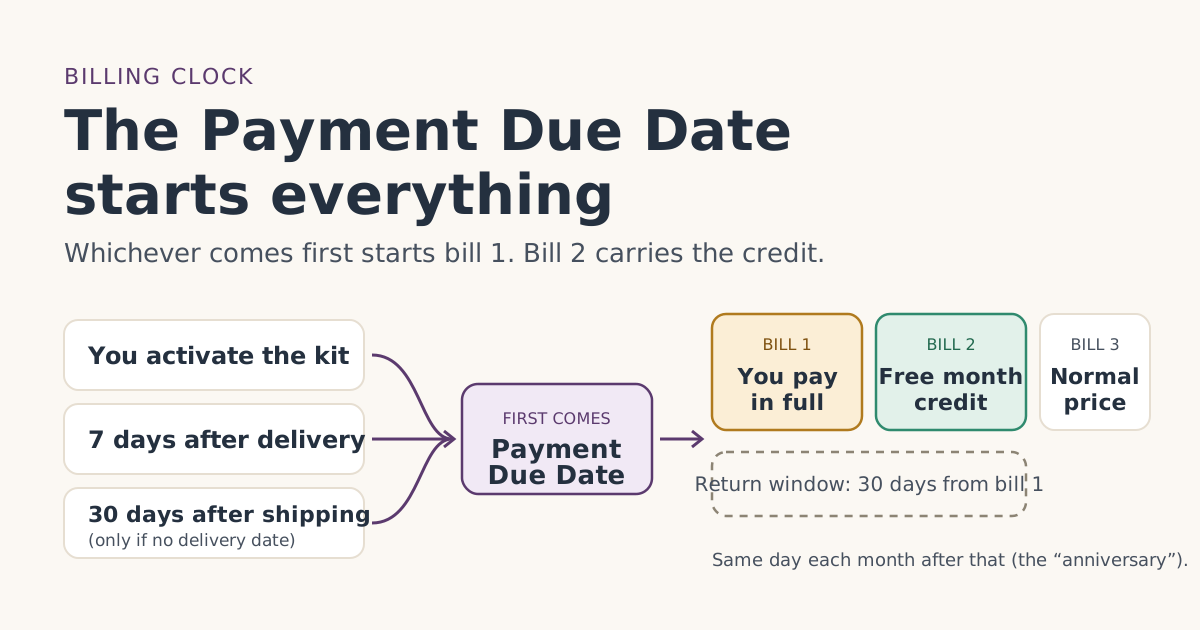 When the credit landsThe Payment Due Date: the one date that sets your free-month timelineYour Starlink Payment Due Date decides when bill 1 hits, when the return window closes and which bill carries the free month. How to find yours.
 Credit missingBill two shows full price: what to check, in orderYour second Starlink bill shows full price instead of the free month. Five checks in the order that solves most cases, and what to send support if none fit.
 When the credit landsDoes the free month cover the rental fee, taxes and other charges?The Starlink free month promises one month of service. What that means for the rental fee, sales tax, prorated charges and extra data, and how to check.